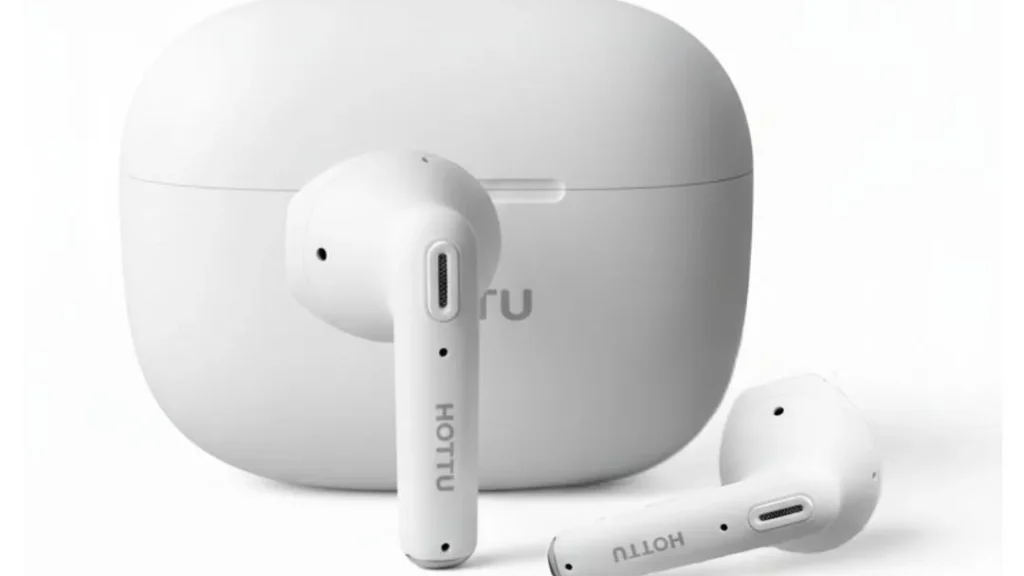
There is nothing more frustrating than putting on your favorite playlist or hopping onto an important call, only for your wireless earbuds to start cutting out or disconnecting completely.
Since True Wireless Stereo (TWS) earbuds rely entirely on Bluetooth technology, minor software glitches or physical interferences can easily disrupt your audio experience. If you are facing this annoying problem, don’t worry. Before you think about throwing them away or buying a new pair, try these 5 simple, proven methods to fix the disconnecting issue.
1. Clear Out Physical and Signal Obstructions
Bluetooth signals are relatively weak and operate on a 2.4GHz frequency. This means they can be easily blocked by physical objects or other wireless networks.
- The Distance: Ensure your smartphone or laptop is within the standard 10-meter (33 feet) range of your earbuds.
- The Barrier: Human bodies, thick walls, and even keeping your phone in a tight back pocket can sometimes weaken the signal. Try keeping your device in your front pocket or on the table in front of you to see if the cutting out stops.
2. Disconnect from Other “Ghost” Devices
One of the most common reasons earbuds randomly disconnect is that they are trying to talk to two devices at the same time. If you have previously paired your earbuds with your laptop, tablet, or a family member’s phone, the earbuds might be actively switching back and forth.
- The Fix: Turn off Bluetooth on all nearby devices except the one you are currently using. This forces your earbuds to maintain a single, stable connection.
3. Rule Out Low Battery and Power Saving Modes
When your TWS earbuds or your smartphone’s battery drops below a certain percentage (usually 15-20%), they automatically enter a power-saving state. To save energy, the devices will intentionally lower the Bluetooth signal strength, leading to sudden dropouts.
- The Fix: Put your earbuds back into their charging case for a solid 30 minutes and ensure your phone is charged. Always check the LED power display on your case to make sure it actually has juice left to charge the buds.
4. Clear Bluetooth Cache and Forget Device
Over time, the temporary Bluetooth data stored on your smartphone can become corrupted, causing pairing loops and unexpected disconnections.
- On Android: Go to Settings > Apps > System Apps > Bluetooth > Storage, and click Clear Cache.
- For Both Android & iOS: Go to your Bluetooth settings, find your earbuds’ name, tap Forget This Device (or Unpair), restart your phone, and pair them again from scratch. This gives the connection a completely fresh start.
5. Keep Your Phone’s Software Updated
Sometimes the issue isn’t with your earbuds at all; it’s a bug in your phone’s operating system. Smartphone manufacturers regularly release software updates to patch Bluetooth connectivity bugs and improve stability with newer audio gadgets.
- The Fix: Go to your phone’s settings and check for any pending system updates. Keeping your phone updated ensures maximum compatibility with modern wireless audio protocols.
Conclusion
In 90% of cases, a quick unpairing or a full charge is all it takes to get your wireless earbuds working perfectly again. However, if your earbuds keep cutting out even after trying all these steps, it might be due to outdated Bluetooth hardware (like using Bluetooth 4.2 instead of the newer, more stable Bluetooth 5.3 standard).
Did any of these steps fix your audio dropping issue? Drop a comment below and let us know which trick worked for you!